

Before You Begin
Before you can use our system you must first signup for an account. Once you do you will receive two emails which will contain your LoginID, Domain and Password. Keep this information handy as you will need it during the installation process.
Installation Instructions
- Download the installation file: Tempest Dialer
- Double-click on the downloaded file
- Follow the displayed directions.
Make sure that your connectivity device (modem or broadband adapter) has been installed and configured properly before connecting to the service.
Setting Preferences
User Info
You'll receive two e-mails within twenty-four hours of signing up to Tempest Telecom's service. These e-mails will contain your user name, domain, and password.
To set your user name, domain and password in iPassConnect:
- Choose 'Login Information' from the 'Settings' menu
- Enter your user name. (The domain is already provided)
- Enter your password and check 'Save Password' to save your password for future connections.
- Set your default Country.
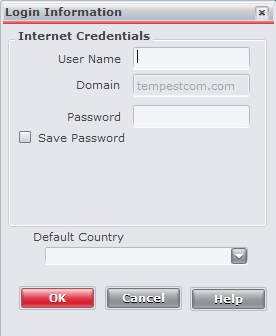
- Click 'OK'
Selecting Your Modem
If you are using the dial-up service, you need to configure iPassConnect to use the correct modem.
To specify your modem:
- Choose 'Connection Settings’ from the 'Settings' menu
- Click on the 'Dialup' tab
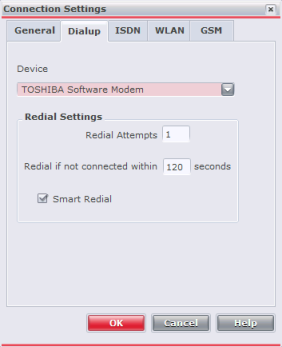
- Select the correct modem under 'Device'
- Click 'OK'
Connecting with Dial-up
To connect to the service using a modem connection:
- Select the country, state, and city from the drop down lists for the location you are at. Click on 'Find'
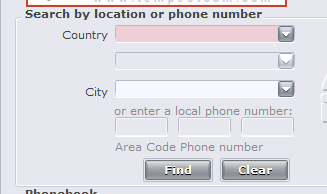
- Select a number from the search results under the 'Modem' heading and click 'Connect'.
- To disconnect from the service, click on 'Disconnect' on the connection status window.
Note: If the location you are at is not listed, select a nearby location, a Universal All-Cities or Toll Free number.
Dial Settings
If you'll be using the dial-up service, you'll need to make sure that the dial settings are set accordingly.
Configuring dial-up:
- Select your location
- Select the 'Modem' heading or the number you will like to connect to
- Click on the 'Dial Properties' button on the main iPassConnect Window
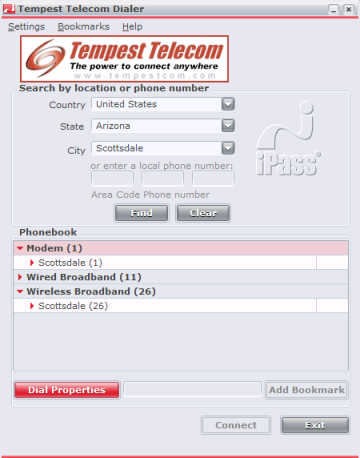
- Enter the number needed to access an outside line. For instance, many hotels require a 9 to be dialed first.
- Select any characters needed to disable call waiting from the drop down box, or enter the characters in yourself. If you don't have call waiting, nothing needs to be put in this box.
- Select the dial tone used by the phone system (most are tone).
- Check the 'Location same as selected number' if your location is the same as the access point you have selected. If the location you are in is different from the access number you've selected, enter in your current location.
- Select an area code rule.
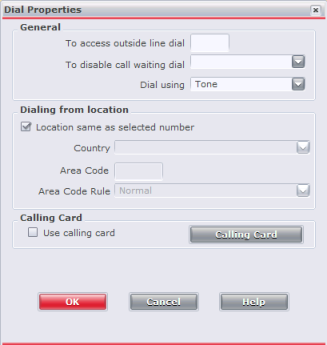
- If you will be using a calling card to make the card, click the 'Use Calling Card' box and then click on the 'Calling Card' button. Put the number to dial for the calling card in dial sequence, including any extra digits to dial before entering the PIN. Enter the PIN in the next spot. Click 'OK'
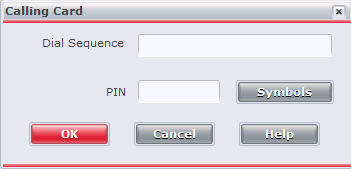
- Click 'OK'
General Preferences
Select 'Connection Settings' from the 'Settings' menu. The 'General' tab allows you to designate any programs to open as soon as you are connected to the service.
Phonebook Updates
Before using the dialer for the first time, or after a long time of not using the service, you'll need to update the Phonebook. The Phonebook contains all access numbers and points available to you through Tempest's service.
Manually Update the Phonebook:
You'll need to be connected to the Internet in order to manually download the Phonebook.
In the 'Settings' menu, select 'Update iPassConnect' and then select 'Phonebook'.
A window will open with the status of the download.
Mandatory Phonebook Updates
iPassConnect will also automatically check at periodic intervals see if there are any updates available. If so, you may be prompted to download and install the update.
Troubleshooting
If for some reason you are unable to connect please contact customer support:
Toll-free: (888) 596-8735
International: (480) 348-0442
Help ticket: http://support.tempestcom.com/support/users/tickets.php?op=add
Online Chat: http://www.tempestcom.com/support/home.aspx and Select 'Live Chat'